Monthly Archives: June 2012

Review of the TDK BA100 – An elegant yet intriguing set of earphones

Pros: Design, package, soundstage
Cons: Lack of strain relief, mids, extension cable

Packaging & Accessories: 8/10
Build Quality: 6.5/10
Design & Look: 8/10
Microphonics (higher ratings means lower cable noise): 9/10 (cable over-the-ear) & 6/10 (straight down)
Isolation: 7/10
Comfort: 9/10
Audio Quality: 8/10
Value: 8/10
My final Rating: 8/10

Purchase Date: June 2012
Purchase Price: £120
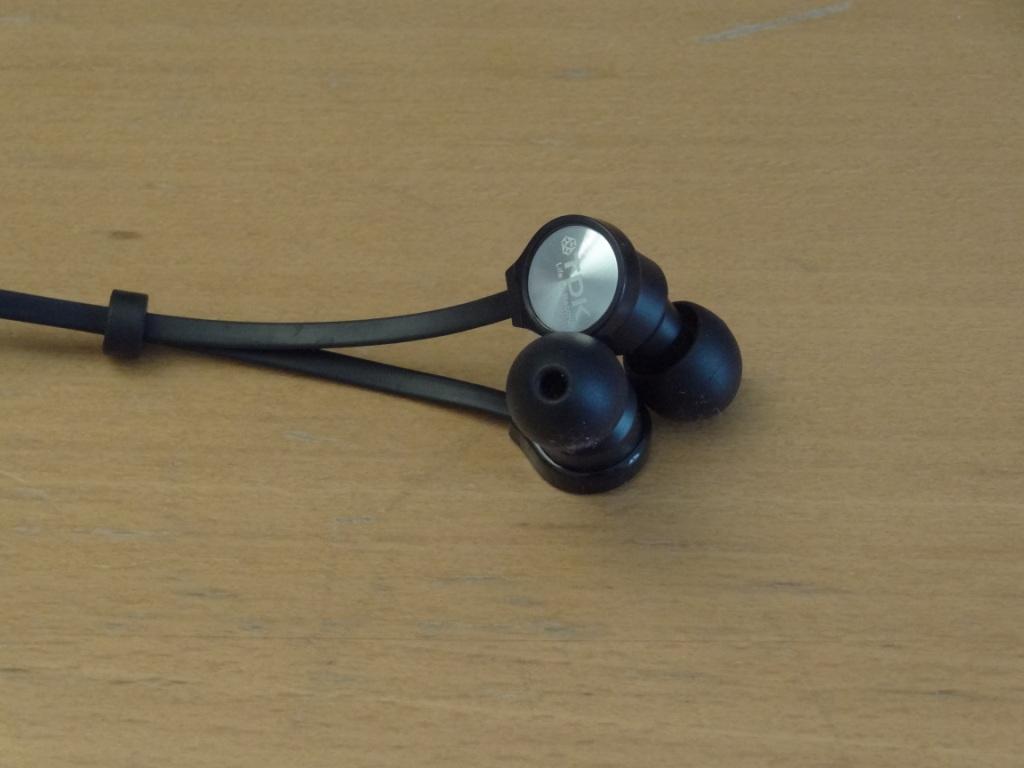
TDK BA100 - Earphones

First and foremost, I would like to thank Katie at TDK, for sending me the TDK BA100’s for review!
I initially received & reviewed the BA200’s, and found them absolutely excellent for their price. I thus wondered how other TDK products would sound, and the BA100’s were the model below the BA200’s, as the BA100’s have a single balanced armature driver in each ear, as opposed to the dual BA drivers the BA200’s have. That said, the price difference between the two isn’t significant (June 2012) – as the price of the BA200 is around £160 and the BA100’s is around £120. Normally with other manufacturers, a single driver increase, adds a huge step in the price.

Before getting into the review, I would like to say that a lot of the initial review will be identical to the BA200’s review, as the packaging for example is identical and so on.
Let’s see if the BA100’s are like their brothers and are diamonds waiting to be discovered.
Continue reading

New Swype BETA 1.0.3 – Overview, pictures and comparison with the old Swype BETA 3.26

Swype is an input method for touchscreens where the user enters words by sliding a finger or stylus from letter to letter, lifting only between words. It uses error-correcting algorithms and a language model to guess the intended word. It also includes a tapping predictive text system in the same interface. Swype is designed for use on touchscreen devices with a traditional QWERTY keyboard. Swype was first commercially available on the Samsung Omnia II running Windows Mobile.
The Swype software was developed by Swype Inc. In October, 2011, Swype Inc was acquired by Nuance Communications.
-Thank you Wikipedia.

Swype, as some of you might know recently went through a few changes (June 2012). This was by far one of the biggest updates the Swype BETA keyboard has gone through. Swype for me, personally, was one of the features that I fell in love with, when I first set my hands on the Samsung Galaxy S GT-I9000 – The I9000 had Swype built in, not too long after Swype BETA came out, which was a keyboard that would be used on almost any Android device. To my surprise I didn’t find it included in the Samsung Galaxy S III GT-I9300, and set out to find Swype. Before continuing let me state that there is a built in “Swype” feature, that is linked to the Samsung keyboard, however I felt, after using it a little while, that the built in version, that wasn’t a separate keyboard was far less accurate and intuitive than Swype, the separate keyboard.

Continue reading

How to flash WanamLite ROM v1.4

Here is the video guide:

Links:
XDA Thread
The developer’s website
Downloads

Screenshots:


Here is the written guide:
-Have your phone rooted, and CWM installed – Click here – for a guide on that
-Download the ROM
-Put .zip file of the ROM into your internal SD card
-Turn off phone
-Get into recovery
-Wipe data/factory reset
-Wipe Cache
-Wipe Dalvik Cache
-Choose to flash using internal sd card
-Flash
-Reboot
-Wait for boot
-Check CSC via *#272*IMEI# – be WARNED, when changing CSC it will factory reset your phone, and DELETE everything on your INTERNAL SD card! So make backups before hitting “install”.
-Enjoy!

Hope this guide helped you!
TotallydubbedHD

How to flash ClockworkMod Touch Recovery on the Samsung GT-I9300

Here is the video guide:

Links:
XDA thread
Official CWM site

Written guide
By XDA member mskip

How to Install ClockworkMod Touch:
1. Download the attached tar file at the bottom of this post. DO NOT EXTRACT THIS FILE! If you end up with a recovery.img file then smack yourself and start again.
2. Download Odin (windows only) at the bottom if you don’t already have it and unzip it to a folder on your PC
3. Reboot into Download Mode: Power off your device, Hold down the ‘HOME’ + ‘VOLUME DOWN’ buttons and press the ‘POWER’ button for about 2 seconds until a WARNING! Screen appears. Press the ‘VOLUME UP’ button to enter Download Mode.
4. Plug your usb cable in
5. Start Odin (double click Odin3_v3.04.exe).
NOTE: When Odin opens you should see that the first box at the top under ID:COM should turn blue and ‘Added’ should appear in the message box in Odin.
6. Make sure ‘Auto Reboot’ and ‘F.Reset Time’ are ticked in Odin and nothing else.
7. Click on the ‘PDA’ button in Odin and browse to the recovery-clockwork-touch-5.8.4.3-i9300.tar file that you downloaded.
8. Click on ‘Start’ to flash CWM to your phone.
NOTE: You can see whats happening in the message box in Odin. When the flash completes you should see ‘PASS’ in the top left the box will turn green and your phone will reboot.
9. You now have CWM Touch Recovery permanently flashed

How to Access ClockworkMod Touch
1. Unplug the USB cable.
2. Shut down the phone.
3. Hold down the ‘HOME’ + ‘VOLUME UP’ buttons and press the ‘POWER’ button for about 5 seconds to enter Recovery Mode.

Hope this helped you!
TotallydubbedHD